🔍 Lab 2: Exploring AI Traces in Dynatrace
Duration: ~30 minutes
In this lab, you’ll explore the traces generated by your AI application in Dynatrace, understanding the insights available for LLM and RAG observability.
🎯 Learning Objectives
- Navigate to distributed traces in Dynatrace
- Analyze LLM call details including prompts and completions
- Understand token usage and cost attribution
- Explore RAG pipeline spans (embeddings, vector search, completion)
- Create basic queries for AI observability
🏆 Why Dynatrace for AI Observability?
| Capability | Basic Tracing | Dynatrace |
|---|---|---|
| Collect traces | ✅ OpenTelemetry | ✅ Native OTLP + OpenLLMetry |
| See token counts | ✅ In span attributes | ✅ Unified with cost analysis |
| Correlate to infra | ❌ Manual | ✅ Davis AI auto-correlation |
| Root cause analysis | ❌ You investigate | ✅ Davis AI automatic RCA |
| Anomaly detection | ❌ Static thresholds | ✅ AI-powered baselines |
| Take action | ❌ External tools | ✅ Built-in Workflows |
Step 1: Access Dynatrace
1.1 Open Dynatrace
Open the Dynatrace environment URL provided by your instructor:
https://YOUR_ENV.live.dynatrace.com
1.2 Login
Use the credentials provided by your instructor.
Step 2: Find Your Service
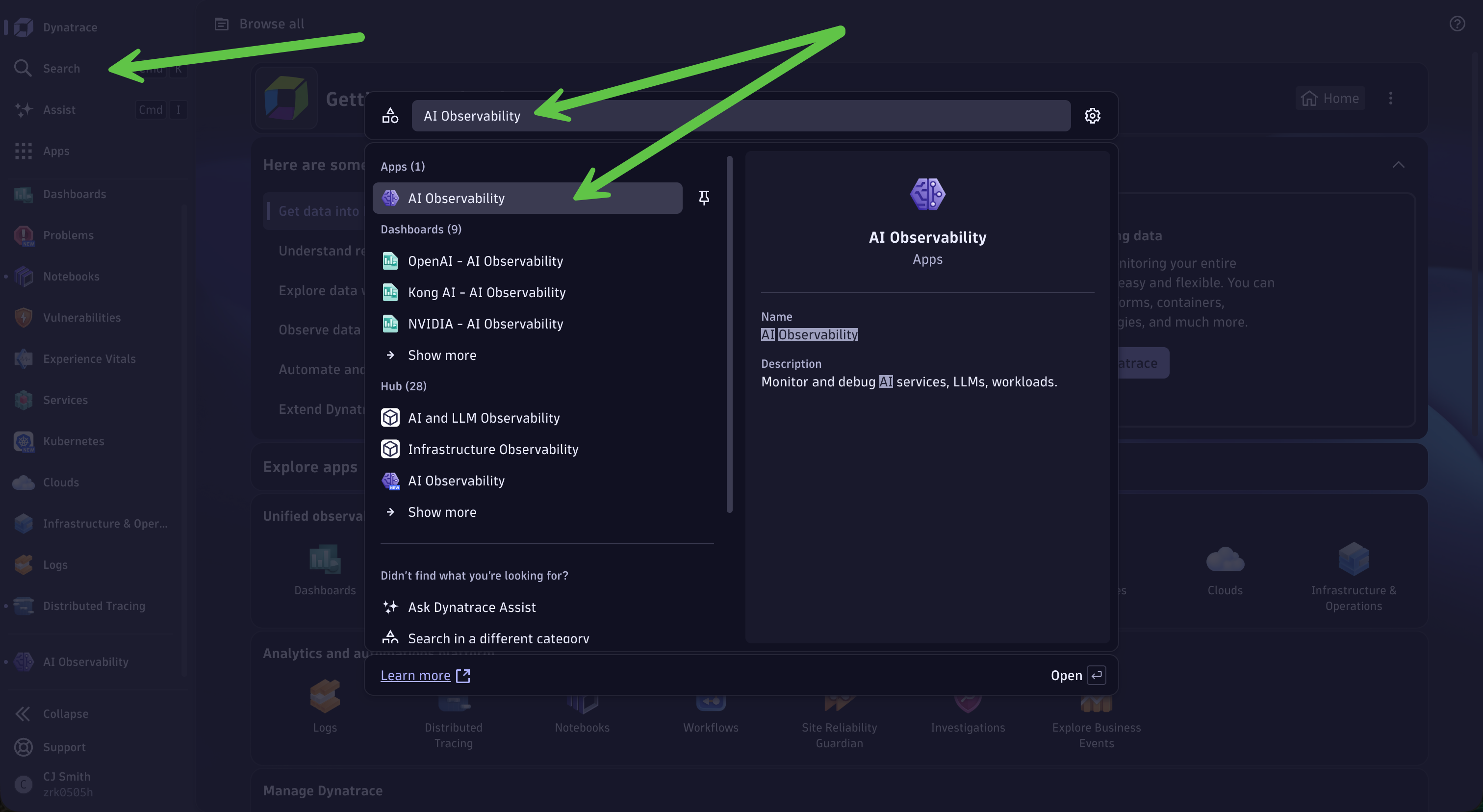
2.1 Navigate to the AI Observability App
- In the left navigation menu, click Search
-
Search for AI Observability and select the app from the list to open
2.2 Explore Service Health
- Click Service Health on the top
-
Choose
ai-chat-service-{YOUR_ATTENDEE_ID}from the list on the left and click Update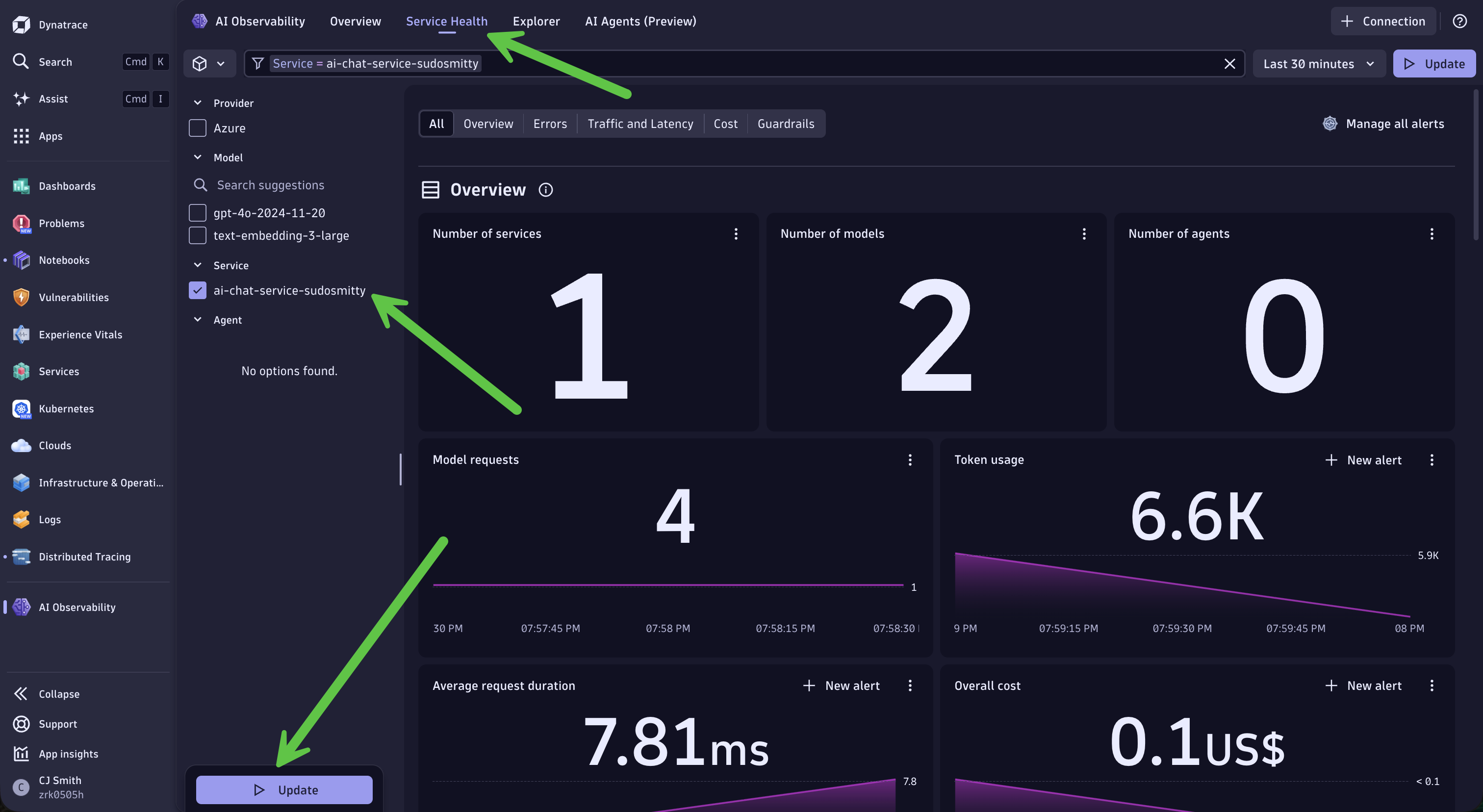
This will allow you to view your service health metrics such as Errors, Traffic and Latency, Cost, and Guardrails.
Step 3: Explore Prompt and Trace Data
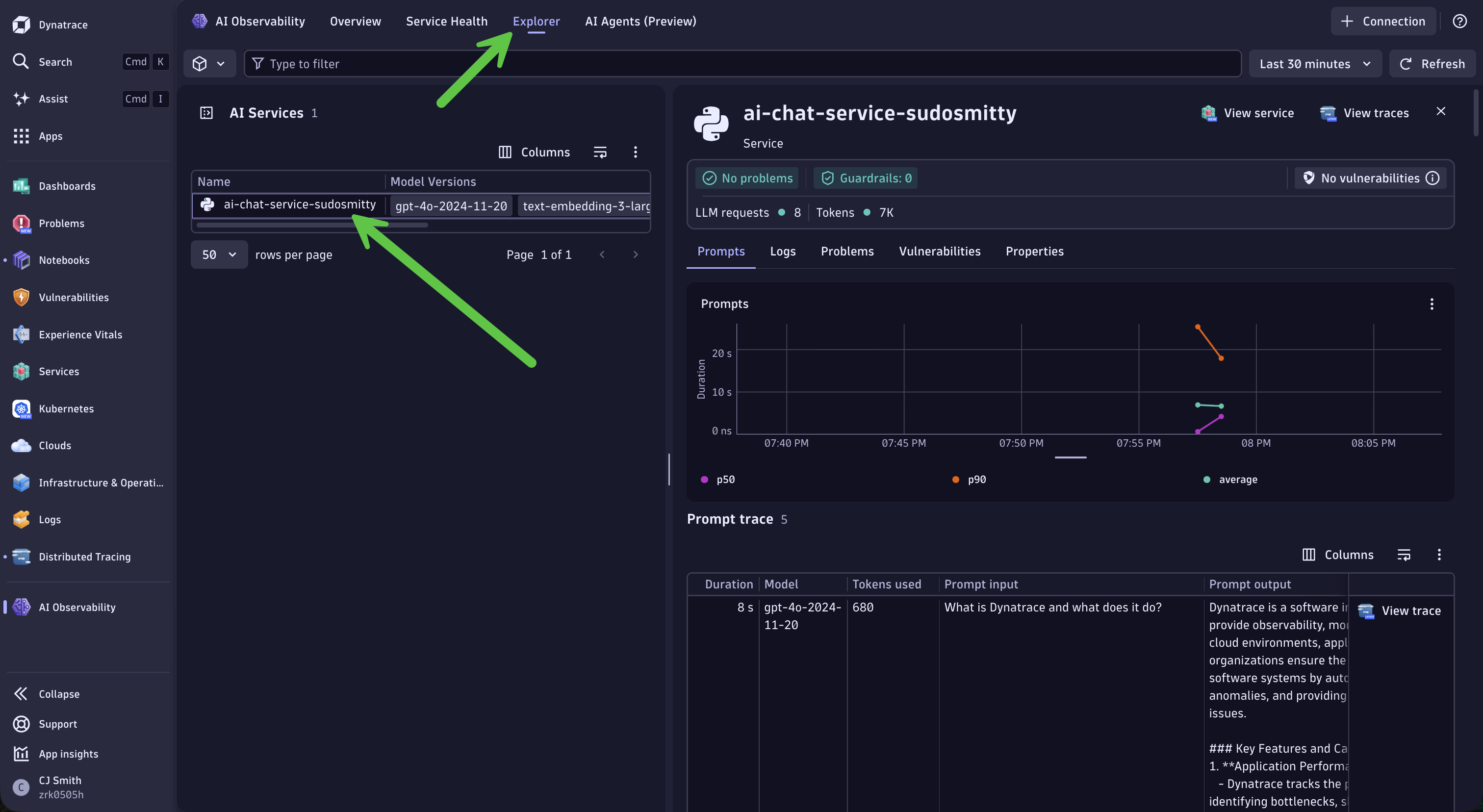
3.1 Explore Prompts
- Click Explorer on the top
- Choose
ai-chat-service-{YOUR_ATTENDEE_ID}from the list
This is where you access deeper data about your AI service.
3.2 Access Traces and Spans
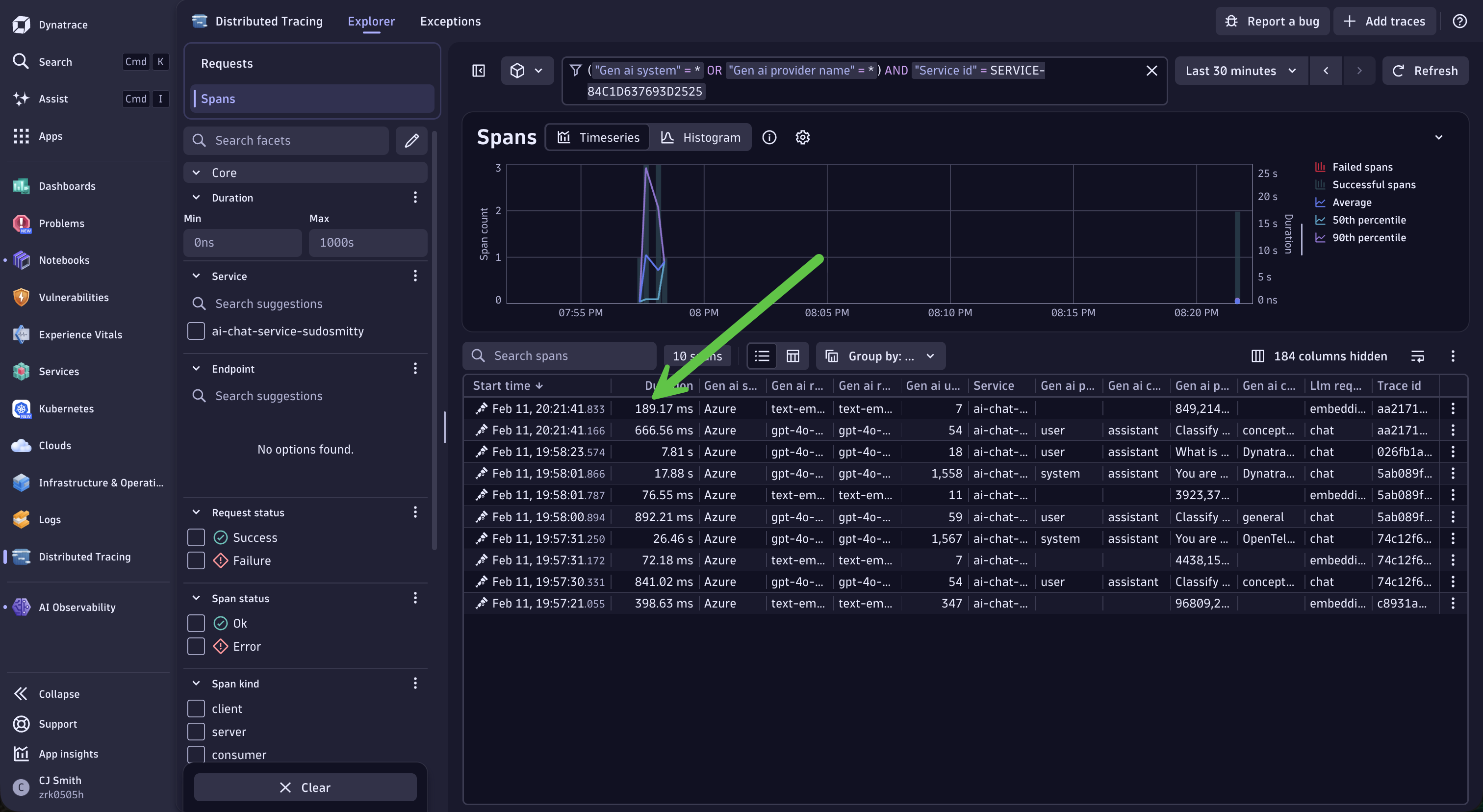
Select the View traces on the top right
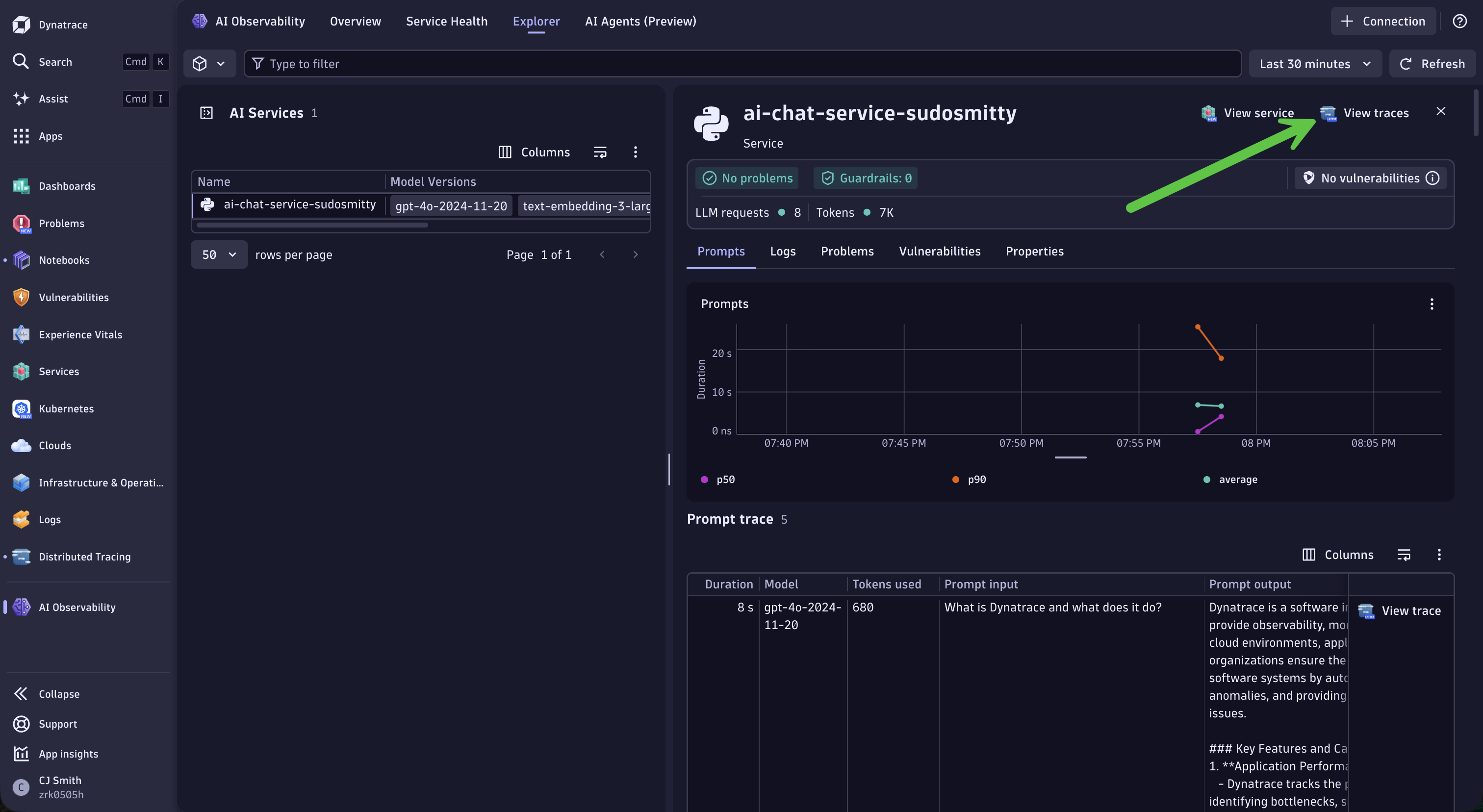
This will bring you to the Distributed Tracing app with a list of spans.
3.3 Select a Trace
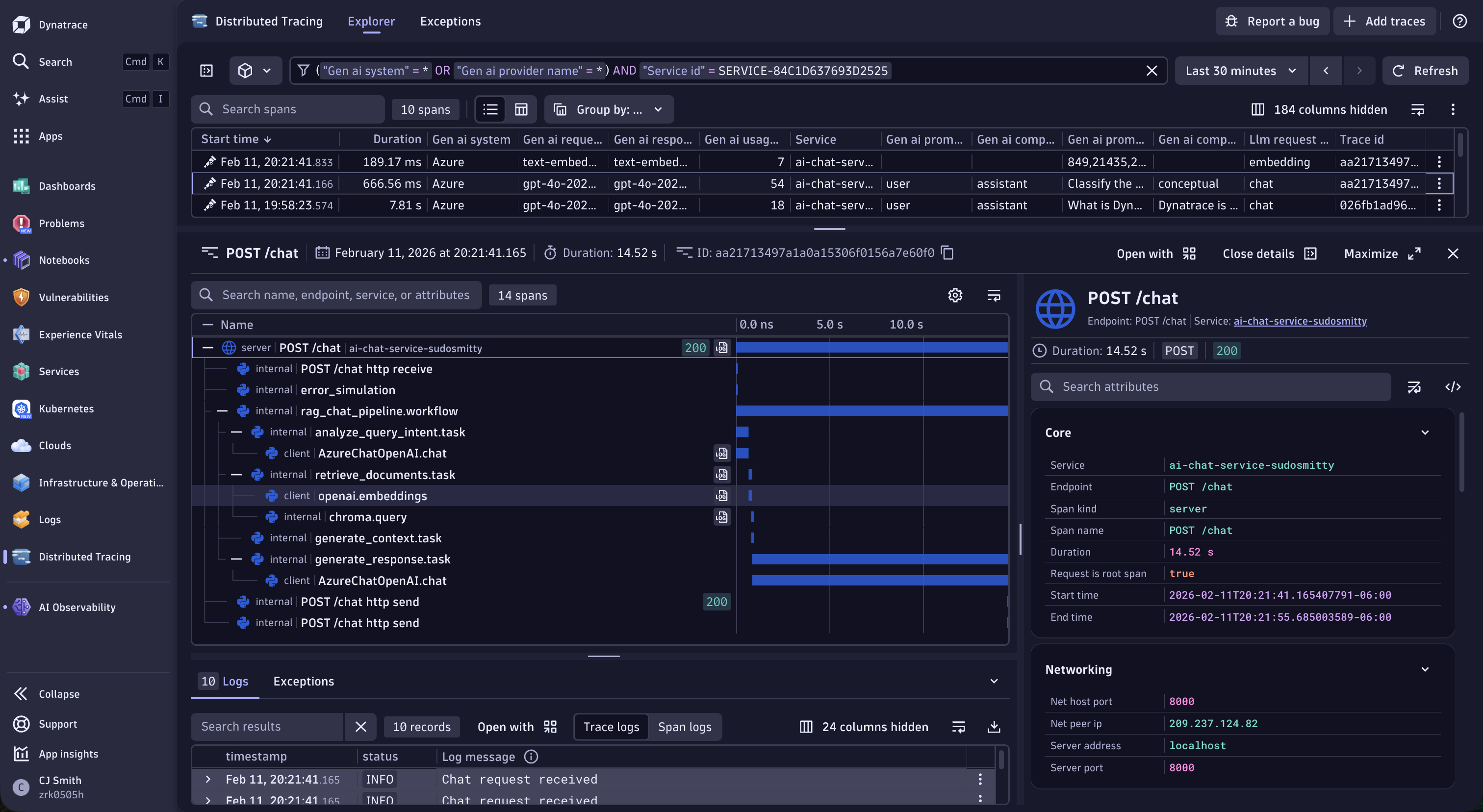
Click on any trace to view the details. You should see traces for your /chat endpoint.
🎭 Your Mission (Choose Your Persona)
From this point forward, you’ll focus on different aspects depending on your role. Both paths cover all steps, but with different emphasis.
💻 Developer: “Why is my RAG giving bad answers?”
Your story: You’ve deployed a RAG-powered chatbot, but users are complaining that sometimes it gives irrelevant or incomplete answers. You need to understand:
- Is the vector search retrieving the right documents?
- Is the context being formatted correctly for the LLM?
- What prompts are actually being sent to the model?
Your goal: Learn to trace a request end-to-end, inspect prompts/completions, and identify where your RAG pipeline might be breaking down.
Focus on: Steps 4, 5, and 6 (marked with 💻)
🔧 SRE/Platform: “How much is this AI service costing us?”
Your story: Your team just launched an AI feature and leadership wants to know:
- What’s the cost?
- What’s the capacity?
- Can we scale this?
Your goal: Build queries that give you token economics visibility, understand cost attribution, and prepare data for capacity planning.
Focus on: Steps 7 and 8 (marked with 🔧)
💻 Step 4: Analyze an AI Trace
4.1 Understanding the Trace Structure
A typical RAG request trace includes these spans:
📍 rag_chat_pipeline.workflow (Main RAG pipeline)
  └── 📍 analyze_query_intent.task (Classify user query type)
      └── 📍 AzureChatOpenAI.chat (LLM call for classification)
  └── 📍 retrieve_documents.task (Document retrieval)
      └── 📍 openai.embeddings (Generate query embedding)
      └── 📍 chroma.query (Vector store search)
  └── 📍 generate_context.task (Format retrieved docs)
  └── 📍 generate_response.task (Generate final answer)
      └── 📍 AzureChatOpenAI.chat (LLM completion call)
4.2 Examine the LLM Span
Click on the azure_openai.chat span under the analyze_query_intent.task to see:
| Attribute | Description |
|---|---|
gen_ai.system |
The LLM provider (Azure) |
gen_ai.request.model |
The model requested (gpt-4o-2024-11-20) |
gen_ai.response.model |
The model that responded |
gen_ai.request.temperature |
Temperature setting (e.g., 0.7) |
gen_ai.usage.input_tokens |
Number of input tokens |
gen_ai.usage.output_tokens |
Number of output tokens |
gen_ai.usage.cache_read_input_tokens |
Cached input tokens (prompt caching) |
4.3 View Prompts and Responses
Note: Depending on configuration, you may see:
gen_ai.prompt.0.content- The input prompt contentgen_ai.prompt.0.role- The prompt role (user, system)gen_ai.completion.0.content- The generated response contentgen_ai.completion.0.role- The completion role (assistant)gen_ai.completion.0.finish_reason- Why generation stopped (stop, length)
This visibility is crucial for debugging AI applications!
💻 Step 5: Analyze Embedding Spans
5.1 Find the Embedding Span
In the trace view, locate the openai.embeddings span.
5.2 Examine Embedding Details
Key attributes include:
| Attribute | Description |
|---|---|
gen_ai.request.model |
Embedding model (text-embedding-3-large) |
gen_ai.usage.input_tokens |
Tokens in the text being embedded |
gen_ai.system |
The provider (Azure) |
💻 Step 6: Vector Store Spans
6.1 Find the Vector Store Span
Look for chroma.query or similar vector database spans.
6.2 Key Insights
Click on the chroma.query span to see database attributes:
| Attribute | Description |
|---|---|
db.system |
The vector database (chroma) |
db.operation |
The operation performed (query) |
db.chroma.query.n_results |
Number of documents retrieved (e.g., 3) |
db.chroma.query.embeddings_count |
Number of embeddings in the query (e.g., 1) |
🔧 Step 7: Token Optimization
Understanding Token Limits
All AI models have maximum input and output tokens that they can accomodate. In our case, we’re using GPT-4o with the following limits:
| Model | Max Input Tokens | Max Output Tokens |
|---|---|---|
| GPT-4o | 128,000 | 16,384 |
7.1 Create a New Notebook
- Navigate to Notebooks in the left-hand menu
- Click + Notebook on the top to create a new notebook
- Name it:
AI Observability - {YOUR_ATTENDEE_ID} - For each DQL query, create a new DQL tile in your Notebook.
Lookup Tables
For this lab, we’ve made use of lookup tables. Lookup tables allow us to upload referencable tables that we can use to enrich our data in Dynatrace. In this case, we’ve created a lookup table with the maximum input/output tokens for our LLM model to make our following DQL queries more dynamic and robust in case prices ever change in the future.
To see the table for this lab, run the following DQL query:
load "/lookups/ai/azure-openai/model-max-tokens"
To see all lookup tables, run the following DQL query:
fetch dt.system.files
7.2 Find the Biggest Token Spenders and Understand What Percentage of Token Limits are Used
//Find the Biggest Token Spenders and Understand What Percentage of Token Limits are Used
fetch spans
| filter service.name == "ai-chat-service-{YOUR_ATTENDEE_ID}"
| filter isNotNull(gen_ai.usage.input_tokens)
| summarize
    total_input = sum(gen_ai.usage.input_tokens),
    total_output = sum(gen_ai.usage.output_tokens),
    avg_input = avg(gen_ai.usage.input_tokens),
    avg_output = avg(gen_ai.usage.output_tokens),
    request_count = count(),
  by: {gen_ai.response.model}
| fieldsAdd total_tokens = total_input + total_output
| lookup [load "/lookups/ai/azure-openai/model-max-tokens"], sourceField:gen_ai.response.model, lookupField:model
| filter isNotNull(lookup.model)
| fieldsAdd input_token_usage_percent = (avg_input / lookup.max.tokens.input)*100
| fieldsAdd output_token_usage_percent = (avg_output / lookup.max.tokens.output)*100
| fieldsRemove "lookup*"
| fields gen_ai.response.model, request_count, total_input, total_output, avg_input, avg_output, input_token_usage_percent, output_token_usage_percent
🔧 Step 8: Using Notebooks for AI Analysis
Dynatrace Notebooks provide powerful querying capabilities for AI observability.
8.1 Create a New Notebook
- Navigate to Notebooks in the left-hand menu
- Click + Notebook on the top to create a new notebook
- Name it:
AI Observability - {YOUR_ATTENDEE_ID} - For each DQL query, create a new DQL tile in your Notebook.
8.2 Query: Model Usage Distribution
//Model Usage Distribution
fetch spans
| filter service.name == "ai-chat-service-{YOUR_ATTENDEE_ID}"
| filter isNotNull(gen_ai.response.model)
| summarize request_count = count(), by: {gen_ai.response.model}
| sort request_count desc
Consider changing the visualization to make the data more intuitive! Click Options > Visualization and select “Pie”.
8.3 Query: Average Response Time by Operation
//Average Response Time by Operation
fetch spans
| filter service.name == "ai-chat-service-{YOUR_ATTENDEE_ID}"
| summarize
    avg_duration = avg(duration),
  by: {span.name}
| sort avg_duration desc
Consider changing the visualization to make the data more intuitive! Click Options > Visualization and select “Categorical”.
🔧 Step 9: Token Economics Analysis
Understanding Token Costs
Tokens directly translate to cost. Here’s the current Azure OpenAI pricing:
| Model | Input Cost (per 1M tokens) | Output Cost (per 1M tokens) |
|---|---|---|
| GPT-4o | $2.50 | $10.00 |
| GPT-4o-mini | $0.15 | $0.60 |
| text-embedding-3-large | $0.13 | N/A |
Lookup Tables
For this lab, we’ve made use of lookup tables. Lookup tables allow us to upload referencable tables that we can use to enrich our data in Dynatrace. In this case, we’ve created a lookup table with our Azure pricing to make our following DQL queries more dynamic and robust in case prices ever change in the future.
To see the table for this lab, run the following DQL query:
load "/lookups/ai/azure-openai/model-costs"
To see all lookup tables, run the following DQL query:
fetch dt.system.files
9.1 Find Your Biggest Token Spenders
//Find Your Biggest Token Spenders
fetch spans
| filter service.name == "ai-chat-service-{YOUR_ATTENDEE_ID}"
| filter isNotNull(gen_ai.usage.input_tokens)
| summarize
    total_input = sum(gen_ai.usage.input_tokens),
    total_output = sum(gen_ai.usage.output_tokens),
    avg_input = avg(gen_ai.usage.input_tokens),
    request_count = count(),
    by: {gen_ai.response.model}
| fieldsAdd total_tokens = total_input + total_output
| lookup [load "/lookups/ai/azure-openai/model-costs"], sourceField:gen_ai.response.model, lookupField:model
| filter isNotNull(lookup.model)
| fieldsAdd estimated_cost_usd = (total_input * lookup.input.cost + total_output * if(isNull(lookup.output.cost),0.00,else:lookup.output.cost)) / 1000000
| fieldsRemove "lookup*"
| sort estimated_cost_usd desc
💡 Tip: High avg_input tokens? Your system prompt or context might be too large. Consider summarizing retrieved documents before adding to context.
9.2 Prompt Caching Effectiveness
Azure OpenAI caches prompts > 1024 tokens. Check your cache hit rate:
//Prompt Caching Effectiveness
fetch spans
| filter service.name == "ai-chat-service-{YOUR_ATTENDEE_ID}"
| filter isNotNull(gen_ai.usage.cache_read_input_tokens)
| summarize
    cached_tokens = sum(gen_ai.usage.cache_read_input_tokens),
    total_tokens = sum(gen_ai.usage.input_tokens)
| fieldsAdd cache_rate_percent = (toDouble(cached_tokens) / toDouble(total_tokens)) * 100
💡 Tip: Low cache rate (<30%)? You’re paying more than necessary! Standardize system prompts and use longer static prefixes (1024+ tokens).
9.3 Token Trend Analysis
Track token usage over time to catch runaway costs early:
//Token Trend Analysis
fetch spans
| filter service.name == "ai-chat-service-{YOUR_ATTENDEE_ID}"
| filter isNotNull(gen_ai.usage.input_tokens)
| makeTimeseries
    total_input = sum(gen_ai.usage.input_tokens),
    total_output = sum(gen_ai.usage.output_tokens),
    request_count = count()
9.4 What To Do With Token Data
| Finding | Indicates | Action |
|---|---|---|
| High input tokens | Large prompts/context | Reduce system prompt, compress context |
| High output tokens | Verbose responses | Add length constraints to prompts |
| Low cache rate | Inconsistent prompts | Standardize prompt templates |
| Token spikes | Potential abuse/bugs | Set up alerts, investigate queries |
| Output > Input | Complex questions | Normal for detailed answers |
✅ Checkpoint
Before proceeding to Lab 3, verify you can:
- Find your service in Dynatrace
- View distributed traces for your AI requests
- Identify LLM spans and their attributes
- See token usage metrics and understand cost implications
- Calculate token costs using DQL queries
- Create basic DQL queries for AI observability
- Understand the trace structure (HTTP → Embedding → Vector → LLM)
🆘 Troubleshooting
“No traces found”
- Verify your service name matches your
ATTENDEE_ID - Wait 1-2 minutes for traces to appear
- Check that your application is running and receiving requests
- Verify the DT_ENDPOINT and DT_API_TOKEN are correct
“Missing LLM attributes”
- Ensure you’re using the traceloop-sdk
- Some attributes may require specific Traceloop configuration
- Check the span details for any available attributes
“Service not appearing”
- Send a few more requests to your application
- Refresh the Dynatrace UI
- Use search (Cmd/Ctrl + K) to find your service
� What You’ve Learned
💻 Developer Takeaways
You now know how to debug your RAG pipeline using traces:
- ✅ Navigate the trace structure to understand your RAG workflow
- ✅ Inspect LLM spans to see prompts, completions, and model parameters
- ✅ Analyze embedding spans to verify query vectorization
- ✅ Check vector store spans to confirm document retrieval
- ✅ Use span attributes to debug why your AI gives certain responses
Next time your RAG gives a bad answer: Open the trace, check the retrieved documents, and inspect what prompt was actually sent to the LLM.
🔧 SRE/Platform Takeaways
You now have visibility into AI service costs and performance:
- ✅ Create Notebooks with DQL queries for token analysis
- ✅ Calculate estimated costs using token pricing formulas
- ✅ Monitor prompt caching effectiveness to optimize spend
- ✅ Track token trends over time to catch runaway costs
- ✅ Identify your biggest token spenders by operation
Take back to your team: The DQL queries you built — they’re ready for dashboards and alerts.
�🎉 Great Progress!
You’ve explored AI traces in Dynatrace and understand how to analyze LLM observability data. Now let’s learn how to use Dynatrace MCP for agentic AI interactions!